
How to save money on cloud storage subscriptions
You started with the free space, filled it, and the cloud offered a "cheap" monthly plan. Then came the bigger plan, the family plan and another service for the other phone. Added up, those fees weigh, and almost nobody stops to review them. This guide helps you pay only for what makes sense.
1. Find out what you pay and for what
List every storage subscription in the house: Google One, iCloud, OneDrive, Dropbox and others. Note the price, the space you bought and how much you actually use. It is common to pay for a 200 GB plan while using 40 GB.
2. Use the free space
Services offer some free space (today, for example, 15 GB at Google and 5 GB at iCloud, figures that may change). If what you keep fits in it, you may not need a plan at all.
3. Clean up before paying more
What takes space is not always worth keeping: duplicate photos, long videos you never watch, old email attachments, files in the trash. Cleaning up can keep you on a smaller plan or the free one.
4. Pick the right plan
- Compare the annual plan with the monthly one; it is usually cheaper per month.
- See whether a family plan can share the space among people in the house.
- Downgrade if your usage has dropped.
5. Keep the heavy stuff at home
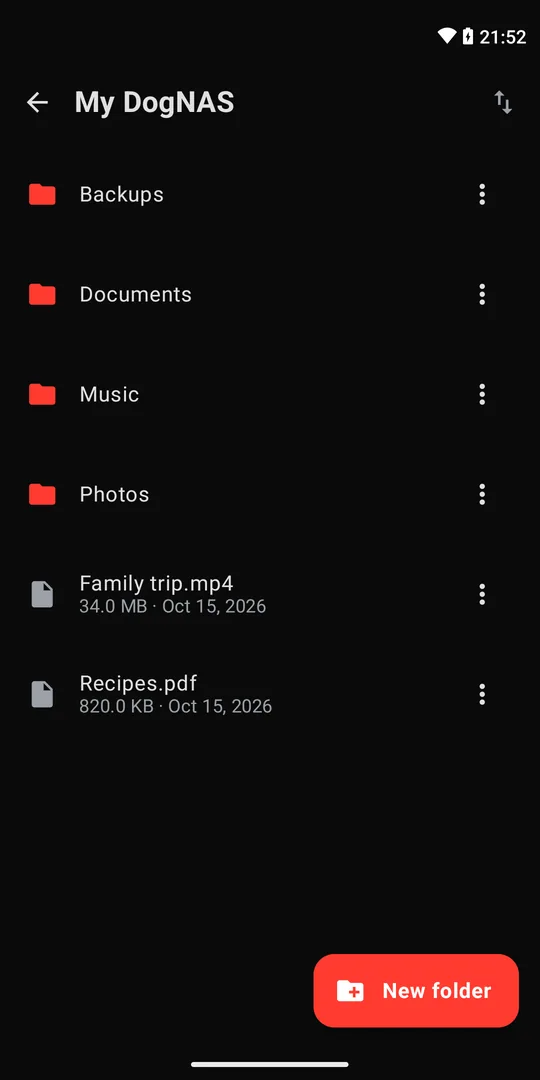
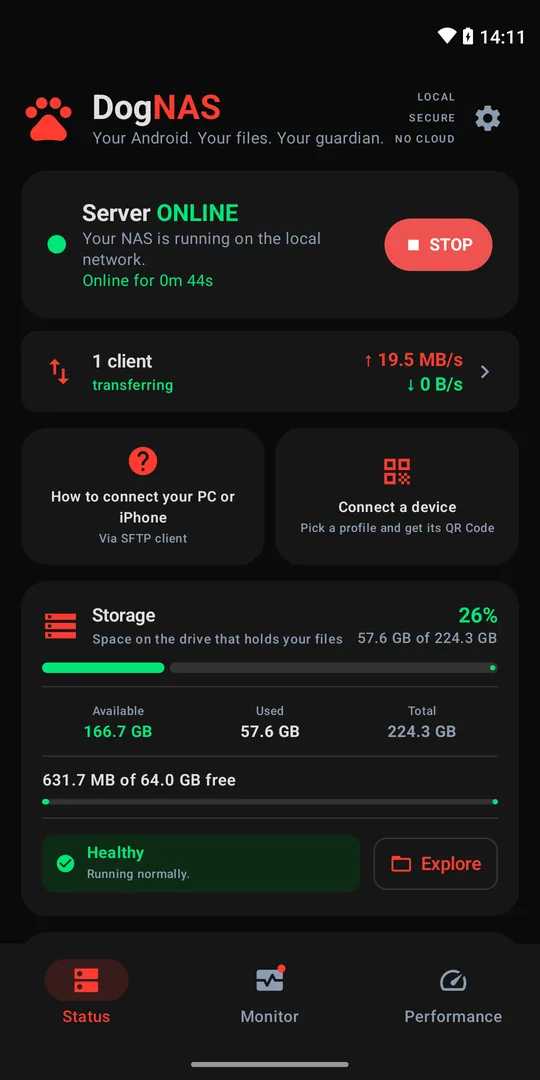
Photos and videos are often 90% of the space. Instead of paying to keep them in the cloud, you can keep them on a server of your own, inside your home. An Android sitting in a drawer will do: with DogNAS, it becomes a file server on your home Wi-Fi, with no monthly fee. The Free plan manages up to 64 GB; Pro, a one-time purchase with no subscription, uses the whole device storage, including an SD card or USB drive.
What the cloud does better
Be fair to both options. The cloud is good for reaching files from anywhere, sharing a link and having a copy outside your home. A home server is good for keeping a lot, privately and with no monthly fee, but it is reached only over your home Wi-Fi and depends on the device being on. Many people keep both: the essentials in the cloud and the bulk on the server.
Precautions before you cancel
- Check that everything arrived at the new place before deleting from the cloud.
- Keep an independent copy of what is irreplaceable. A home server keeps files in the chosen storage and does not back up on its own; a disk can fail.
- Cancel last, after testing for a few weeks.
Next step
Make a list of your subscriptions, clean out what is left over and move photos and videos to a place of your own. To start, see how to turn an old Android into a file server.