How to turn an old Android into a file server
In this article
Almost everyone has an old Android phone or tablet in a drawer. It still turns on, joins Wi-Fi and has plenty of storage. Instead of leaving it idle, you can turn it into a small file server for your home: a place to keep and reach photos, videos and documents over your network, with no cloud and no monthly fee.
This guide walks through the whole process with DogNAS, a free app that makes the device work as a file server on your local Wi-Fi network.
What you need
- A phone or tablet running Android 7.0 or newer, which will stay at home as the server.
- Your home Wi-Fi. The server and the devices that will reach your files must be on the same network.
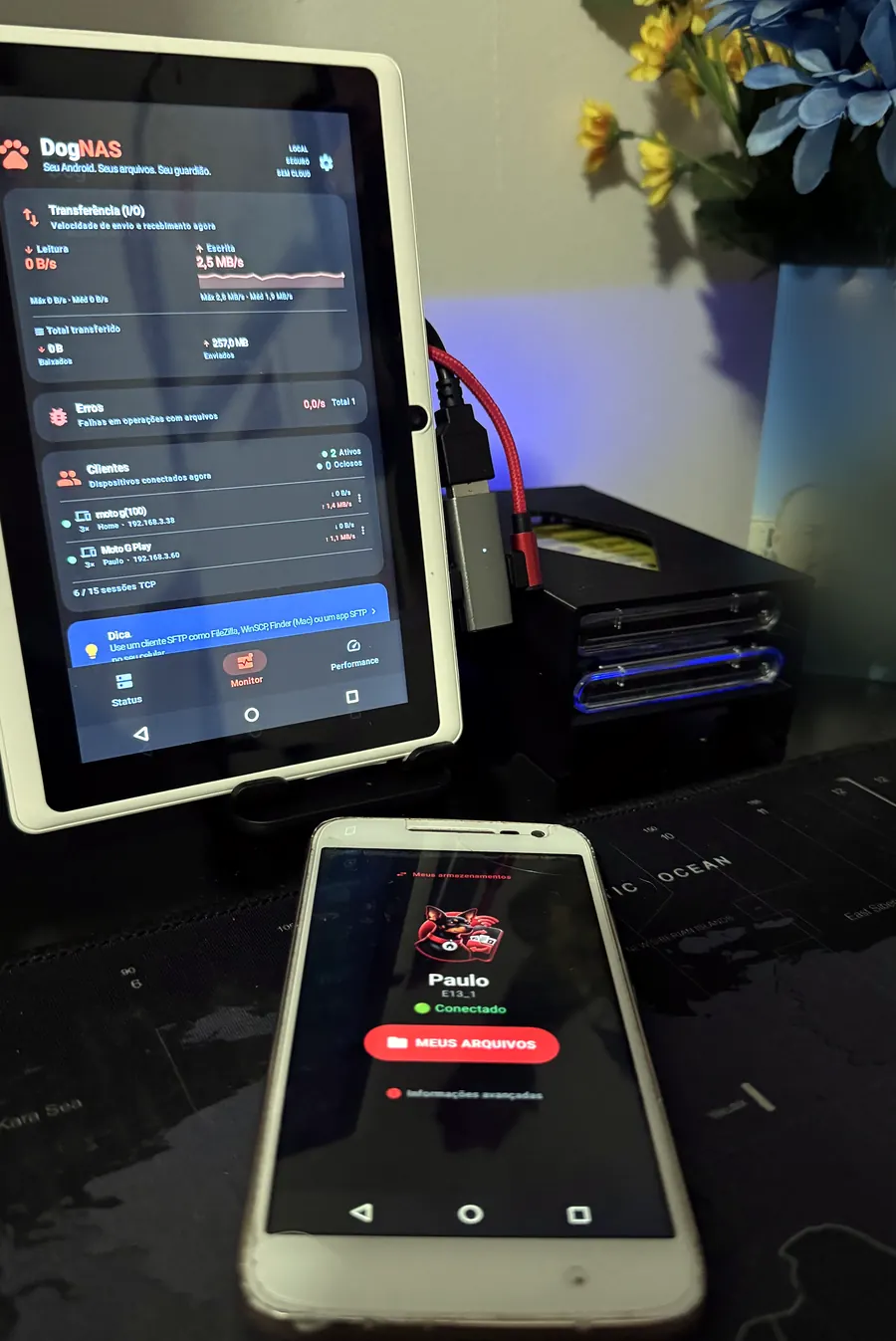
- Room for the files: the device's internal storage, an SD card, or a USB drive or hard disk (USB drives need a device with USB OTG).
- A charger, because the server works best when plugged in.
Step by step
- Install DogNAS on the old Android. This is the device that will keep your files. The app is on Google Play.
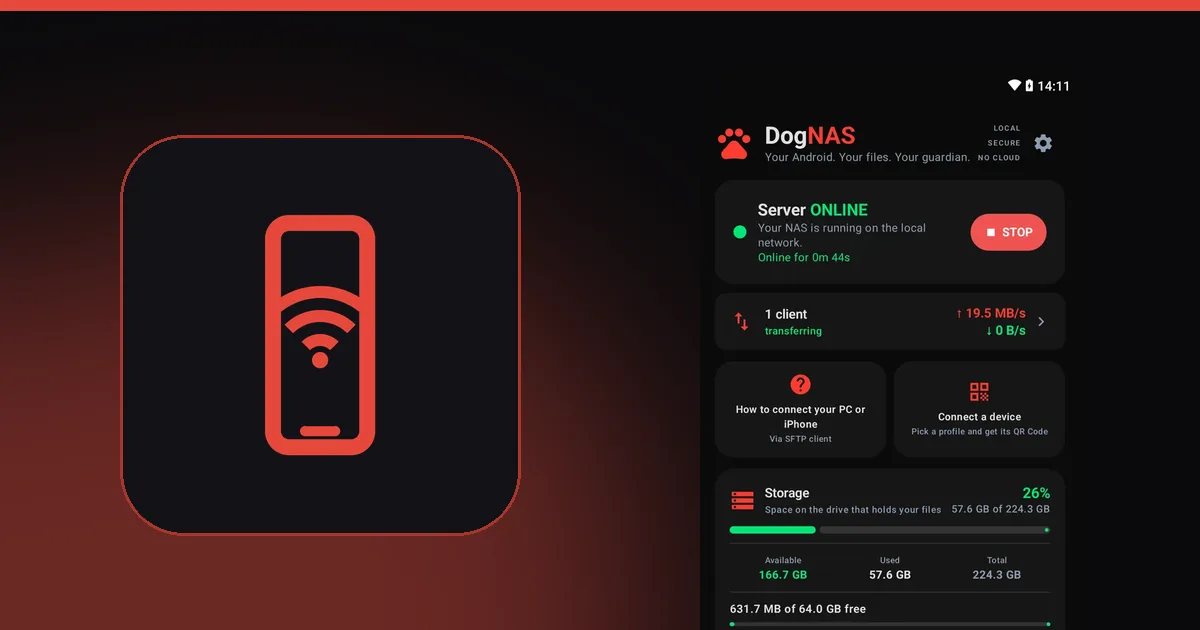
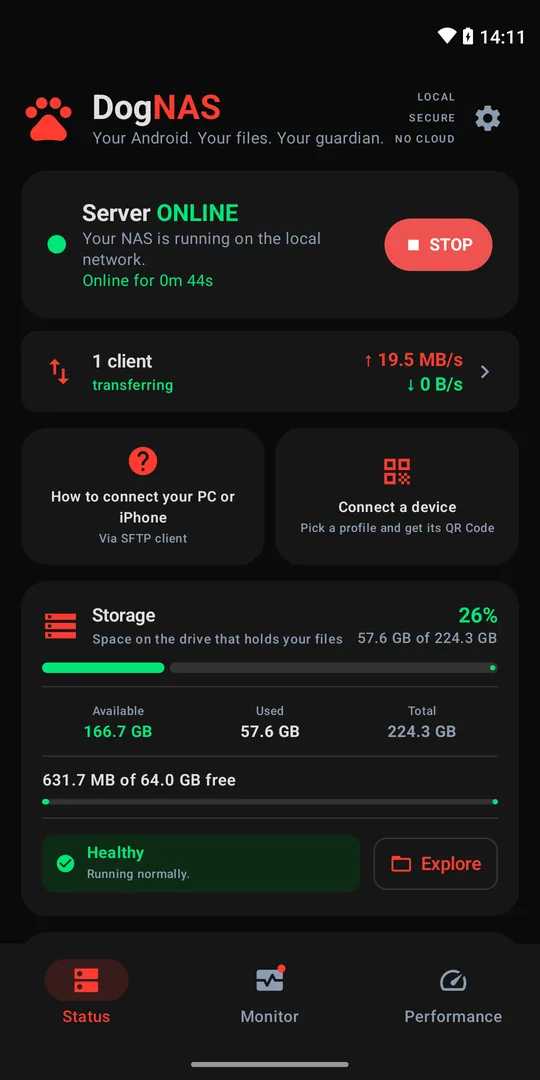
- Choose where to keep the files and tap Start. The server is now running on your home network.
- Create a profile for each person. Each profile has its own PIN and folders, and nobody sees anyone else's files.
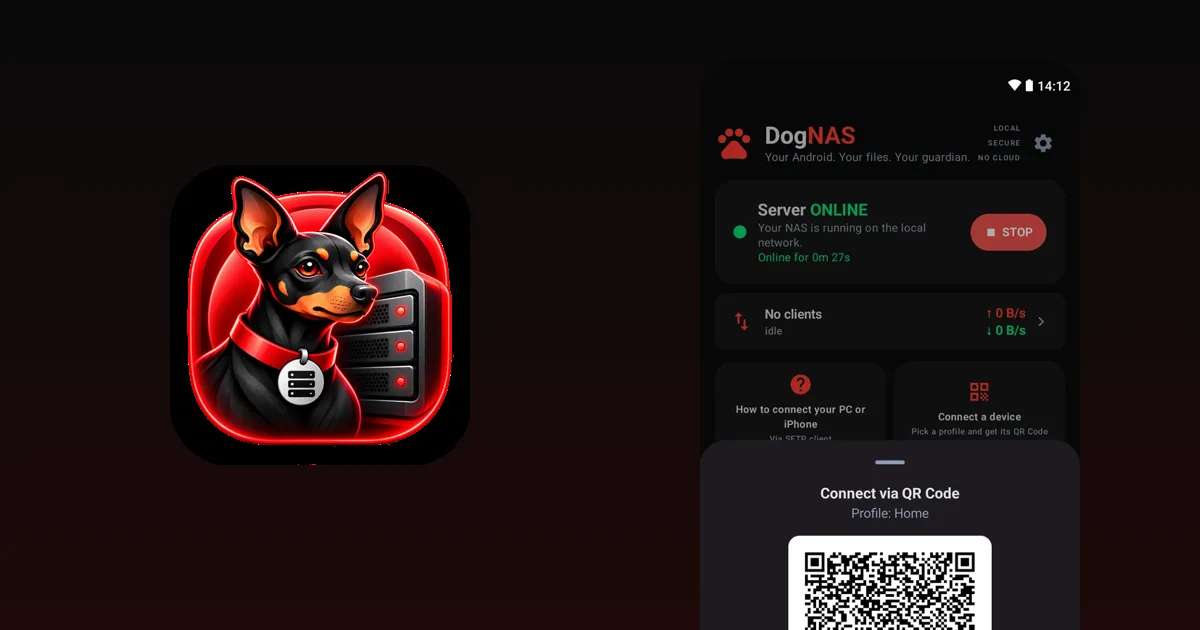
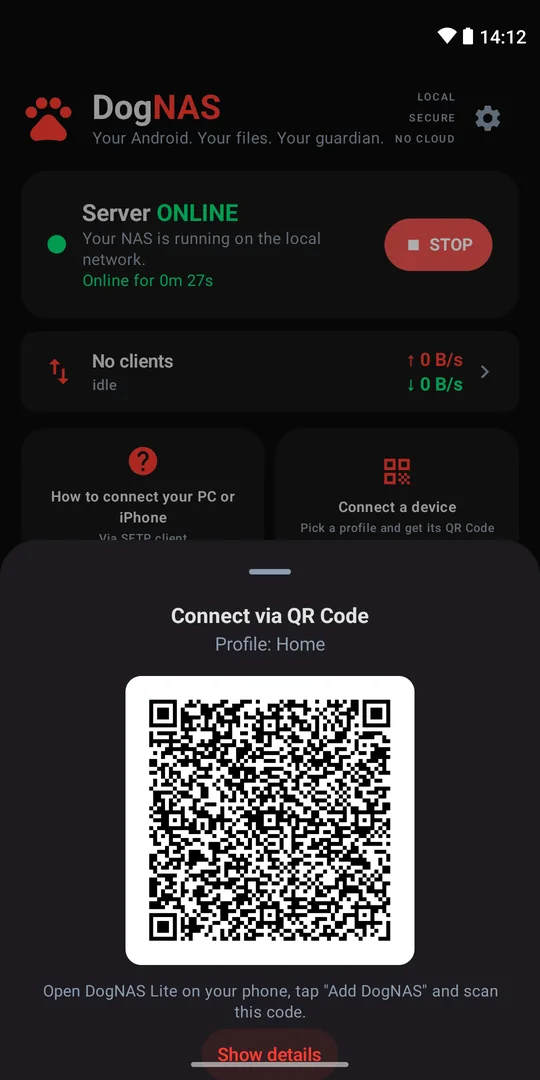
- Connect your phone. On the server, generate the profile's QR Code. On the phone that will use the files, open DogNAS Client Lite, point the camera at the QR Code and type the PIN.
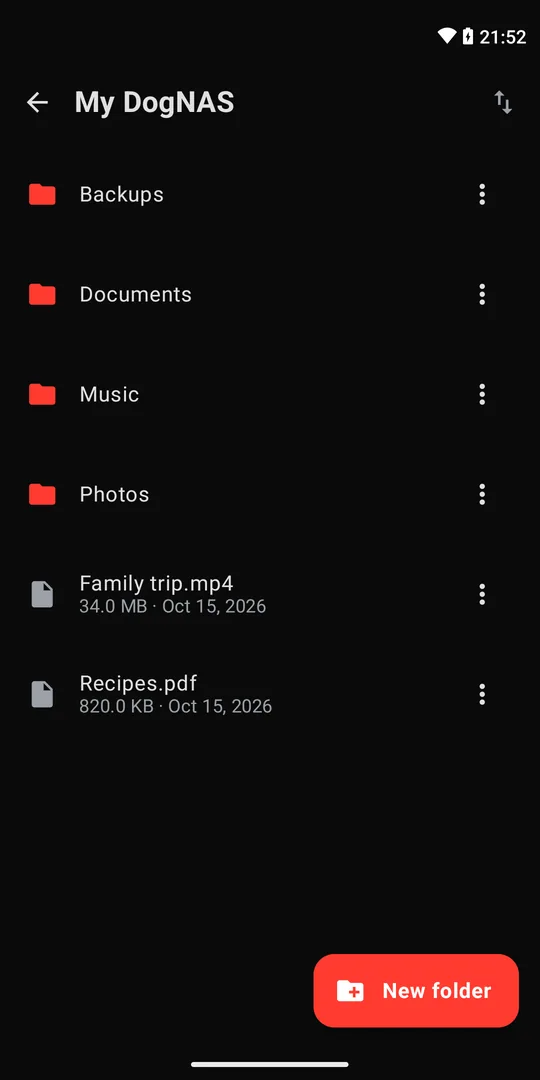
- Use it every day. Browse folders, upload photos and videos and download what you need over your home Wi-Fi.
To reach it from a computer you don't need a special app: DogNAS speaks SFTP, so programs such as FileZilla, WinSCP, Cyberduck and OpenSSH's sftp work.
Follow everything, no hassle
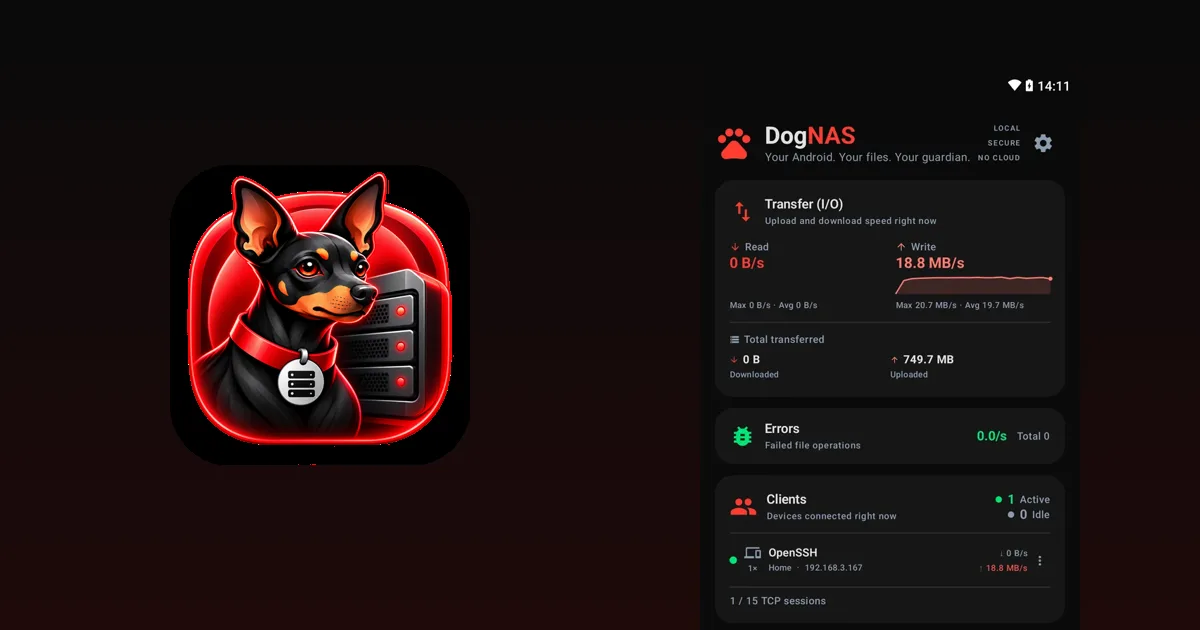
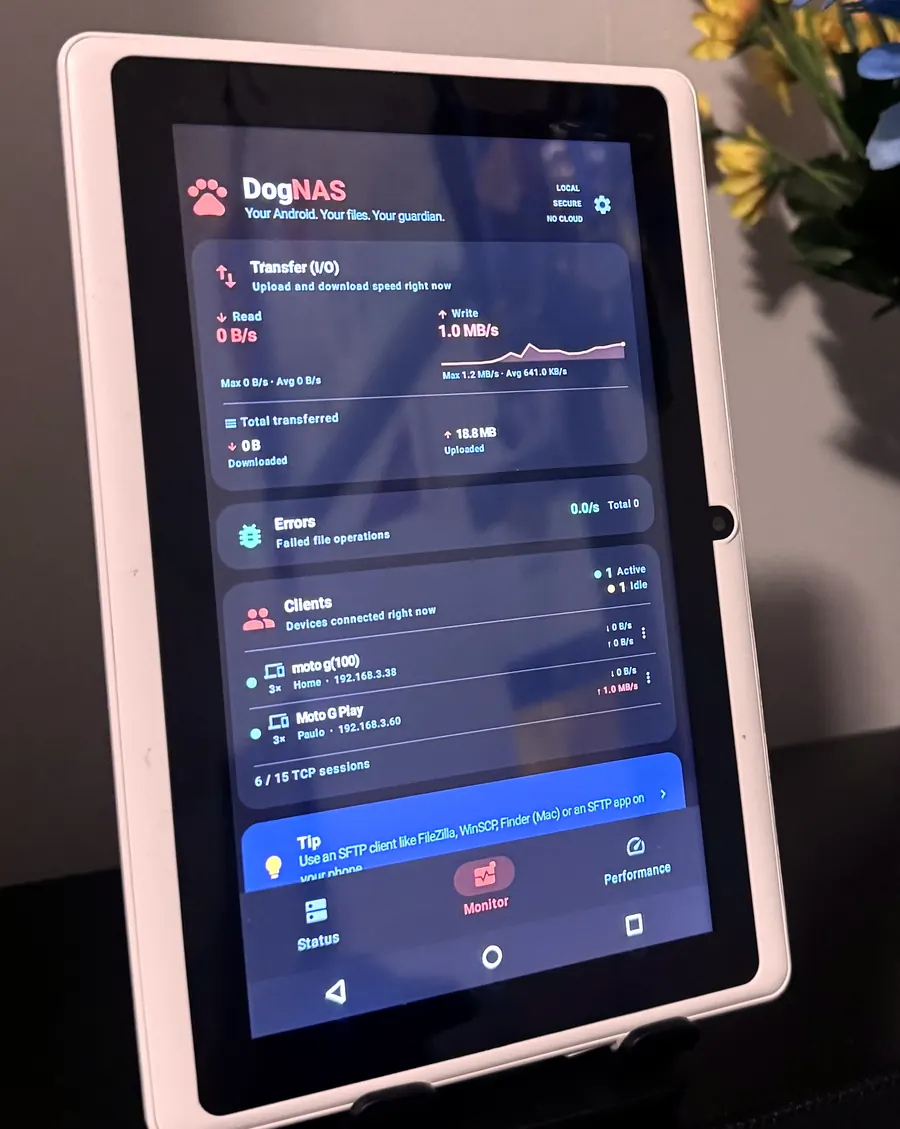
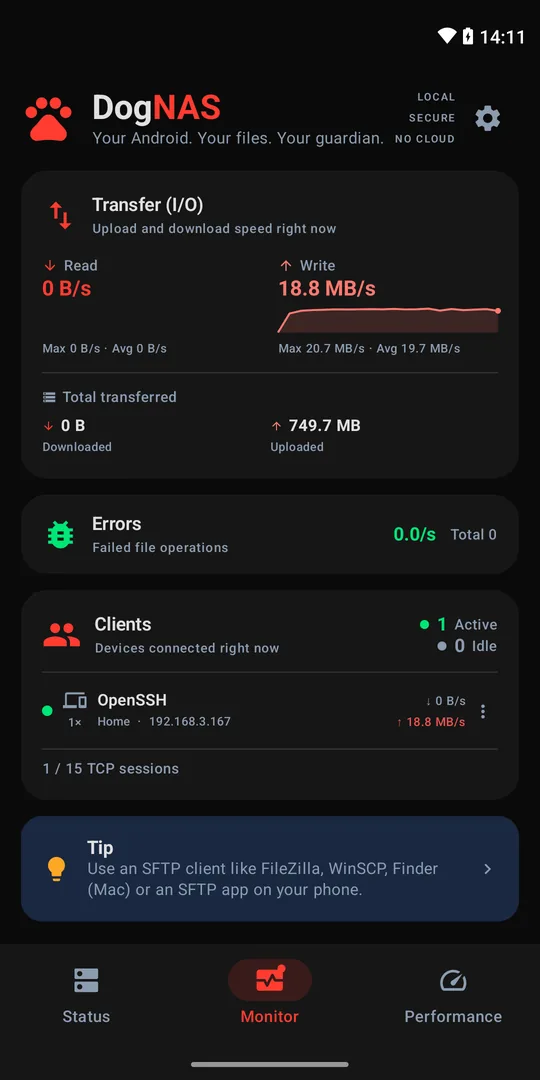
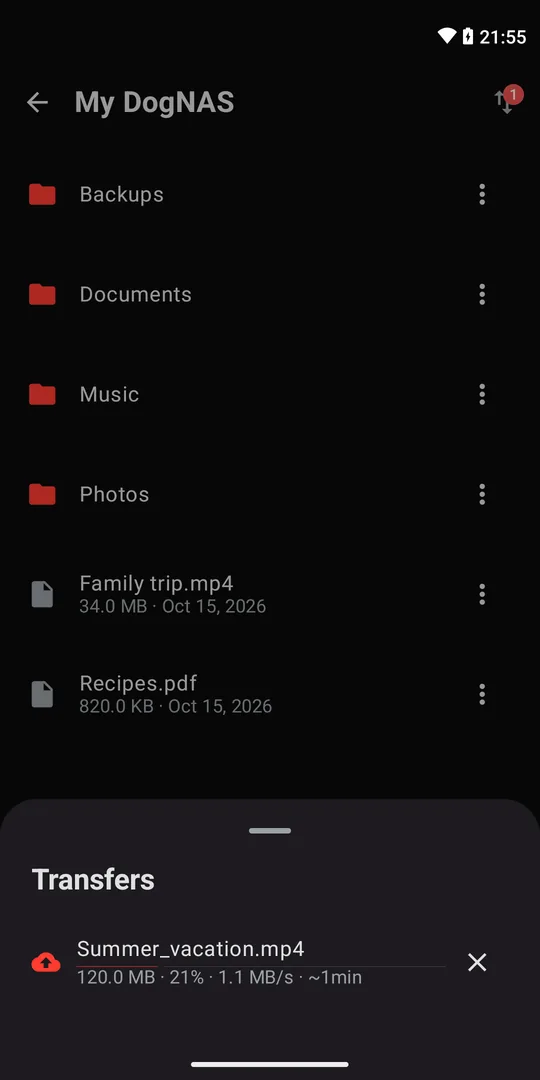
The server shows connected clients and transfer speed in real time. On the phone, Client Lite keeps the queue of uploads and downloads, and you reuse the old device in just a few minutes.
How much space you get
On the Free plan, DogNAS manages up to 64 GB, with the Home profile plus 2 more profiles, and up to 3 paired devices. DogNAS Pro is a one-time purchase, with no subscription, and unlocks the device's whole storage. If you need more room, plug in an SD card or a USB drive.
What to consider before you start
- It depends on the device. Some makers limit background apps to save battery. If the server stops on its own, check the device's battery settings and the compatibility requirements.
- A disk can fail. DogNAS keeps files in the storage you chose and does not make backups on its own. For important files, keep an independent copy.
- Several disks don't become one. Each disk is a separate storage; DogNAS does not combine several disks into a single volume.
- Local network. Access depends on your network setup and your DogNAS credentials. Files travel encrypted (SSH/SFTP) across your network, without going through a cloud.
See how simple it is
Real screenshots of the app: the server running, the profile's QR Code and the files on the phone.
Next step
Dig out the old Android, install the server and connect your phone. In a few minutes, that drawer becomes your home storage.