
How to transfer files between your PC and phone over Wi-Fi, no cable
Moving a file from your computer to your phone, or from your phone to your computer, sounds simple until you have to do it every week. A cable that is never at hand, emailing yourself, a full cloud. There is a way to do it over your home Wi-Fi, directly, with no cable and no account.
The most common ways
- USB cable. Works without a network and is fast, but you need the cable, the phone's permission and the device next to the computer.
- Cloud services. You upload to the cloud and download on the other device. Handy, but it uses internet, takes space in your account and the file goes through third-party servers.
- Apps that open the phone in the PC's browser. No cable, but you have to open the app every time, and the connection often drops when the screen turns off.
- Bluetooth and Wi-Fi Direct. Fine for small, one-off files, and they vary a lot from device to device.
- A file server of your own at home. One device stays on the network and all the others reach the same folders. It is the only one you set up once and use all the time.
How to do it with DogNAS
DogNAS turns an Android phone or tablet (7.0 or newer) into a file server on your home Wi-Fi. The PC and the phone reach the same folders, and files travel encrypted (SSH/SFTP) across your network, without going through a cloud.
- Install the server on the Android that will keep the files and tap Start.
- Create a profile for yourself, with its own PIN and folders.
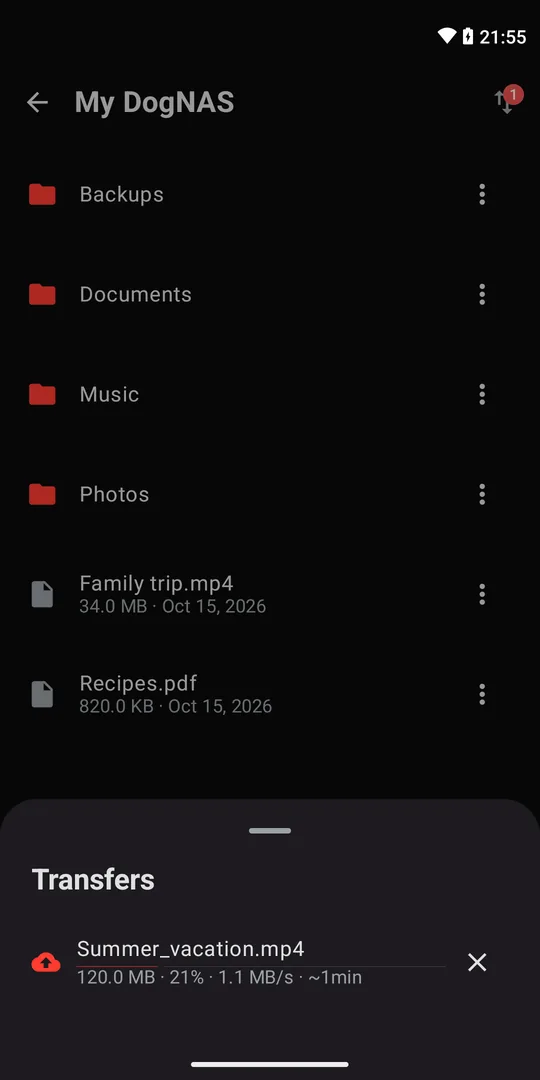
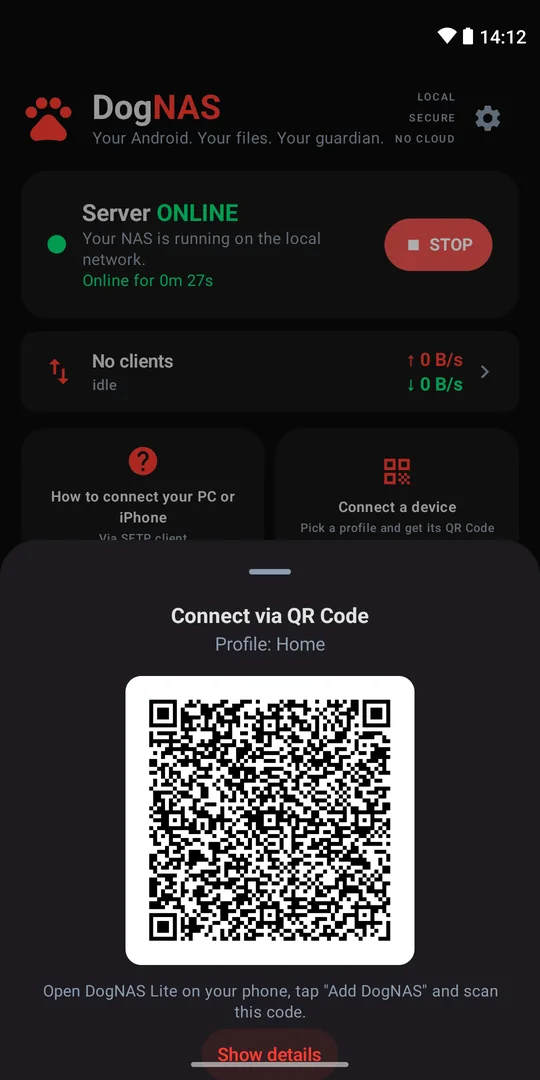
- On the phone, open DogNAS Client Lite, point the camera at the profile's QR Code and type the PIN. Upload and download files from the transfer queue.
- On the PC, open an SFTP client such as FileZilla, WinSCP or Cyberduck and use the connection details the server shows on its "how to connect your PC or iPhone" screen. Drag files between the windows.
That's it: what you put on the server from the PC shows up on the phone, and what the phone uploads shows up on the PC. It works both ways, with no cable and no opening an app each time.
What to consider
- Same network. The PC and the phone must be on the home Wi-Fi, just like the server.
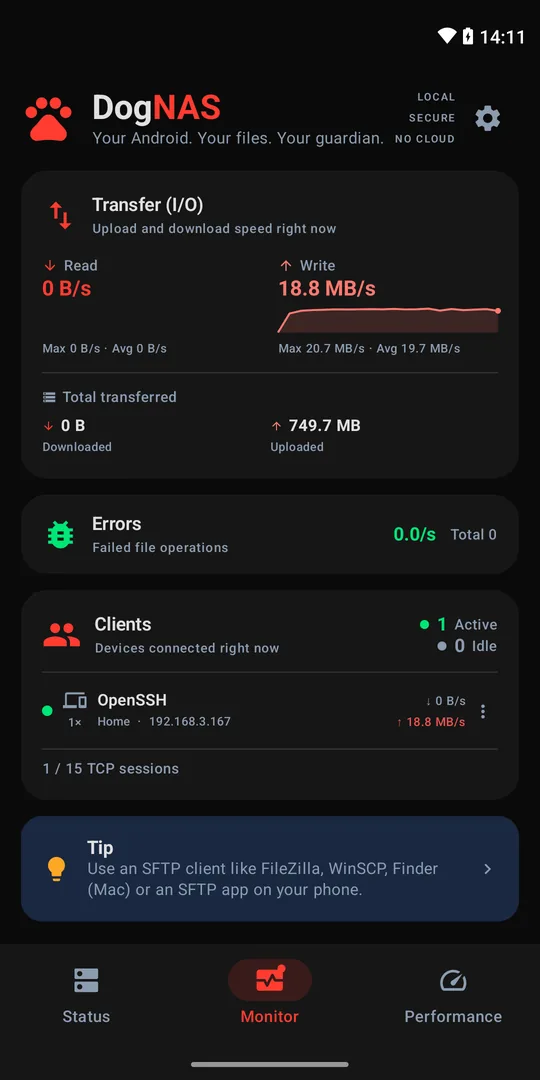
- Speed. It depends on the quality of your Wi-Fi and on the device acting as the server.
- Server on. The device has to stay on and connected; some makers limit background apps, so check the requirements.
- Backup. DogNAS keeps files in the storage you chose and does not back up on its own. Keep an independent copy of what matters.
When it is worth it
If you move files between devices once in a while, a cable does the job. If you do it all the time, or want the whole family to reach the same folders, a server of your own at home saves time and cloud space. To see what else it does, read how to turn an old Android into a file server.