WhatsApp filling your phone: how to move photos and videos out without losing your chats
Tested on: Moto G100 · Android 12 · DogNAS Client 1.0.1 uploading to a DogNAS server (E13) · 2026-11-02
In this article
WhatsApp fills your phone because, by default, it downloads and keeps the photos, videos, voice notes and documents that pass through your groups on the device, even the ones you never opened. The way out that keeps what matters is to copy that media to a place of your own, check it, and only then delete it from the phone. Your text conversations stay in the app.
Why WhatsApp takes so much space
By default WhatsApp downloads photos automatically and, depending on your settings, videos and documents too. Family, work and neighbourhood groups send dozens of files a day, and all of it stays on the phone. Over time the app grows to gigabytes without you noticing.
Start by seeing the size of the problem: in WhatsApp open Settings, Storage and data, then Manage storage. It lists the chats that use the most space and the large files or those forwarded many times. Menu names change a little between versions.
Where the media lives
The paths depend on your Android version:
| Aspect | Android 11 or newer | Android 10 or older |
|---|---|---|
Android/media/com.whatsapp/WhatsApp/Media | WhatsApp/Media | |
| WhatsApp Business | Android/media/com.whatsapp.w4b/WhatsApp Business/Media | WhatsApp Business/Media |
Inside Media there is one folder per type: WhatsApp Images, WhatsApp Video, WhatsApp Audio, WhatsApp Voice Notes, WhatsApp Documents, and a Sent subfolder with what you sent. Names can vary with the app language and version.
Step by step with DogNAS
You need a DogNAS server at home. An old Android works as a file server and, with a hard drive or USB stick, you get more room. On the full phone use DogNAS Client (or the lighter DogNAS Client Lite), which is free.
- See what is heavy. In WhatsApp open Manage storage and note the biggest chats.
- Create a folder on the server, for example
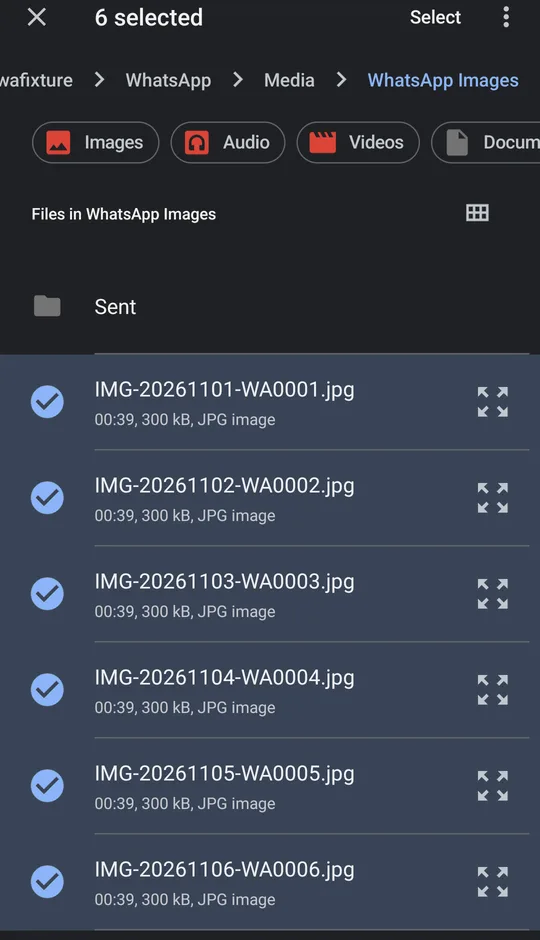
WhatsApp-2026, and pair the phone with the profile's QR Code and PIN. - Send the media with New, Upload. The phone's file picker opens: go to the media folder, long-press a file, choose "Select all" and send. Repeat for each folder (
WhatsApp Images,WhatsApp Videoand, if you like,Documents,Voice NotesandSent). Upload is per file, not a whole folder. The transfer queue shows progress and resumes if the Wi-Fi drops. - Check on the server. Open a few photos and videos and compare the file count and size with the phone.
- Only then delete from the phone, either in WhatsApp (Manage storage) or by deleting the folders you copied.
Things to keep in mind
- Check before you delete. This is the step that prevents regret.
- Deleting media keeps the text, and the chat shows the file as unavailable. Sometimes you can download it again and sometimes you cannot, depending on whether the file is still available to you. Assume your copy may be the only one.
- This is not a WhatsApp backup. The chat history backup is WhatsApp's own (Google Drive). DogNAS stores the media files you copy and does not restore chats.
- One copy is not safety. DogNAS stores on the disk you choose. For irreplaceable photos, keep a second copy somewhere else.
- Your network only. Sending happens over home Wi-Fi, with the server on and connected.
- Space on the server. The Free plan manages up to 64 GB; group videos can add up fast, so check how much you need.
Keep it from filling up again
- In WhatsApp, under Storage and data, set automatic download to Wi-Fi only, or turn it off for videos and documents.
- Mute media download in big groups.
- Repeat the copy now and then, for example monthly. Sending is manual today; an automatic copy is not part of DogNAS yet.
Frequently asked questions
Can I delete the media without losing my chats?
Yes. The text stays; deleted files show as unavailable. That is why you copy and check first.
Does DogNAS keep my WhatsApp chats?
No. It stores only the media files you copy to the server. Your chat history stays with WhatsApp's own tools.
What if the picker does not show the WhatsApp folder?
On newer Android, copy the folder to Downloads with a file manager and send it from there.
Summary
See what WhatsApp takes, copy the media folders to a server of your own, check them, and only then delete from the phone. If you have nowhere to store it yet, start with how to free up space on Android and use an old Android as a server.