Turn an Android TV box into a home file server (we tested one)
Tested on: Aquário STV-3000 Plus (TV box) · Android 11 · 2026-11-01
In this article
Yes, an Android TV box can work as a home file server, with some limits we explain below. It is a small always-on computer that already sits next to your TV and your router, with Wi-Fi (many also have an Ethernet port) and a USB port, and since DogNAS 1.1.6 the server app is built to run on one.
This guide is based on a real test, not on the spec sheet: we ran DogNAS on an Aquário STV-3000 Plus (Android 11, 2 GB of memory) and used it from two phones and a computer. It says what worked, what did not and what we could not test.
What you need
- An Android TV box with Android 7.0 or newer and some free storage, or a USB drive (a hard disk or SSD in a dock, like a laptop's old disk, or a pen drive).
- The box connected to your home network. Wi-Fi works; if your box has an Ethernet port, a cable is the more stable choice (we did not test Ethernet).
- A phone to pair with, to scan the QR Code shown on the TV.
- The DogNAS app on the box. It comes from Google Play, so the box needs the Play Store. Boxes without it can be a problem: we did not test installing the app by other means.
Set it up in a few steps
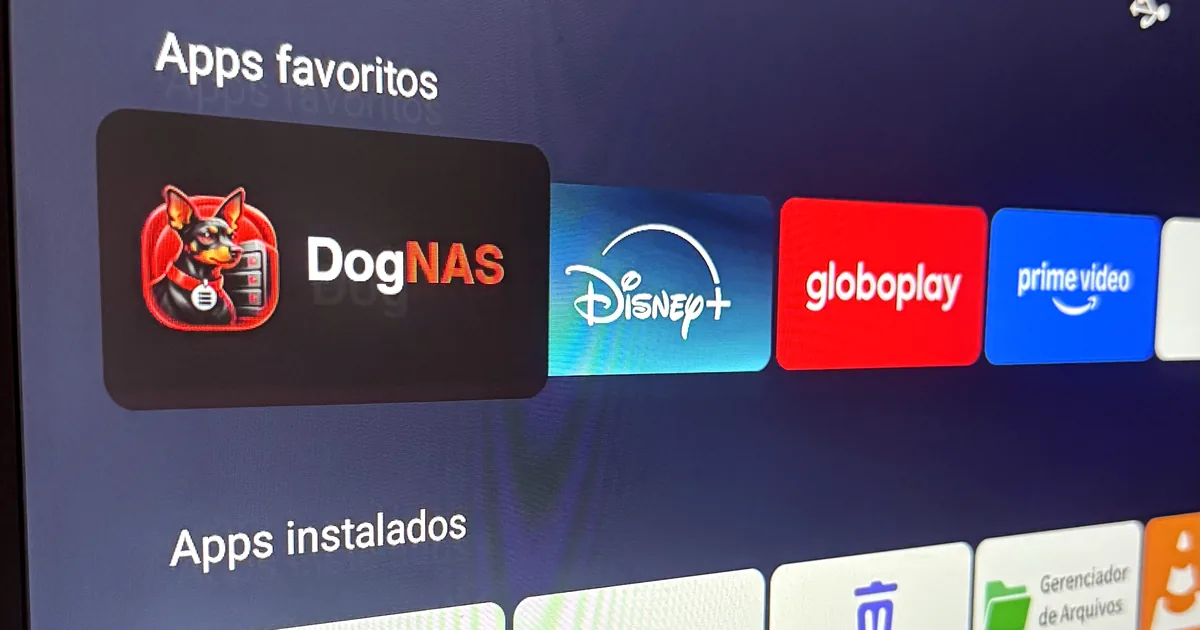
- Install DogNAS from the Play Store on the box and open it from the "Apps" row of the TV launcher.
- Choose where to keep the files. The first-run wizard asks where the "DogNAS" folder should live. Many TV boxes have no system folder picker, so DogNAS shows its own choice: the box's internal storage or, if one is plugged in, the USB drive.
- Start the server and choose a 4-digit PIN for the Home profile. The on-screen keyboard of the TV works for the PIN.
- Pair a phone. The TV shows a QR Code. On the phone, open DogNAS Client Lite or DogNAS Client, tap "Add DogNAS", point the camera at the TV and type the same PIN.
- Optional: give the box a fixed address in the router or in the box's Wi-Fi settings. It is good practice, not a requirement: the DogNAS apps find the box again by itself if its address changes (they look for it on the network by name). In our test the box got a new address after a restart: DogNAS Client found it by itself and DogNAS Client Lite did after the 1.0.6 update. A fixed address still helps on routers that block this kind of discovery.
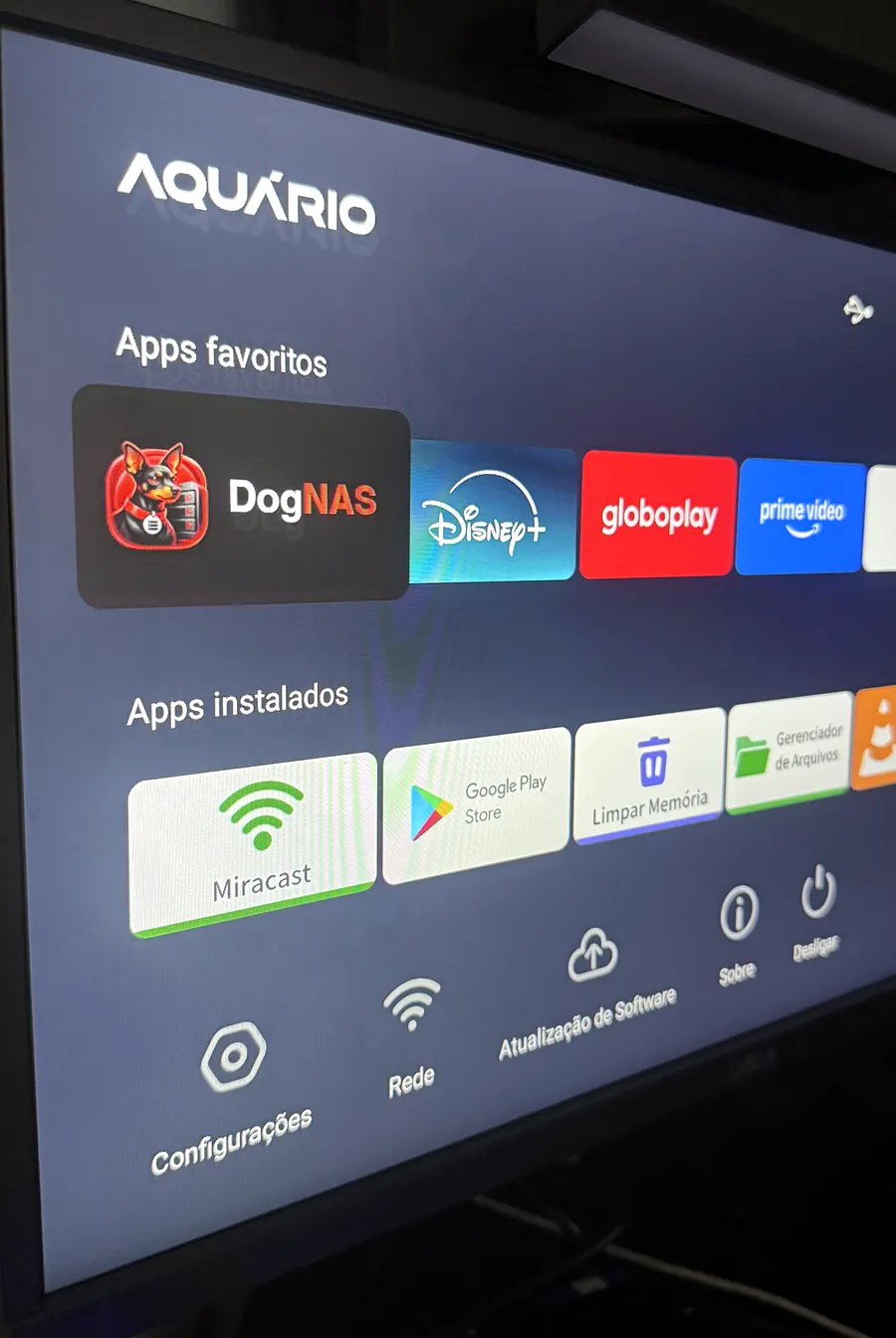
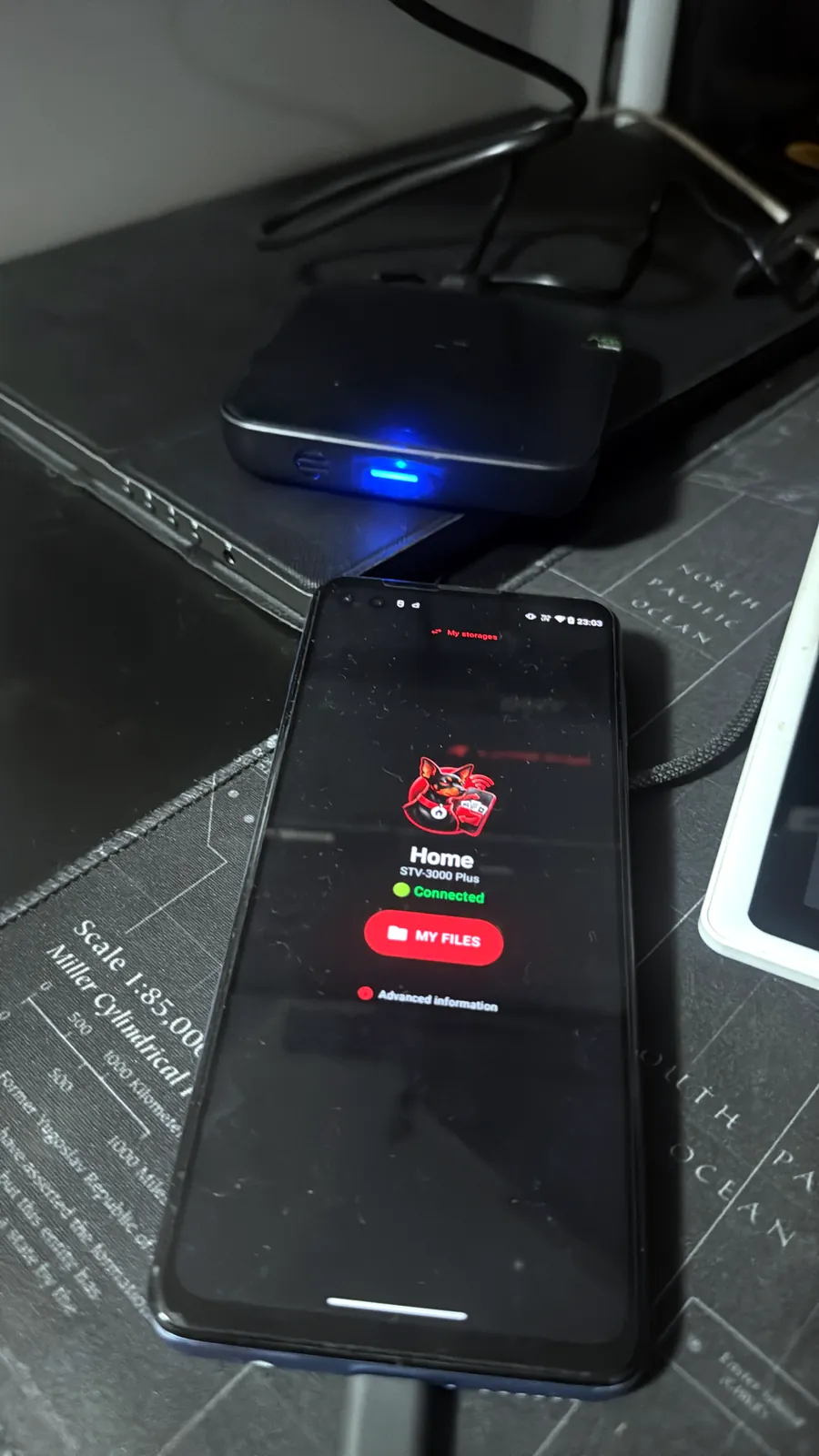
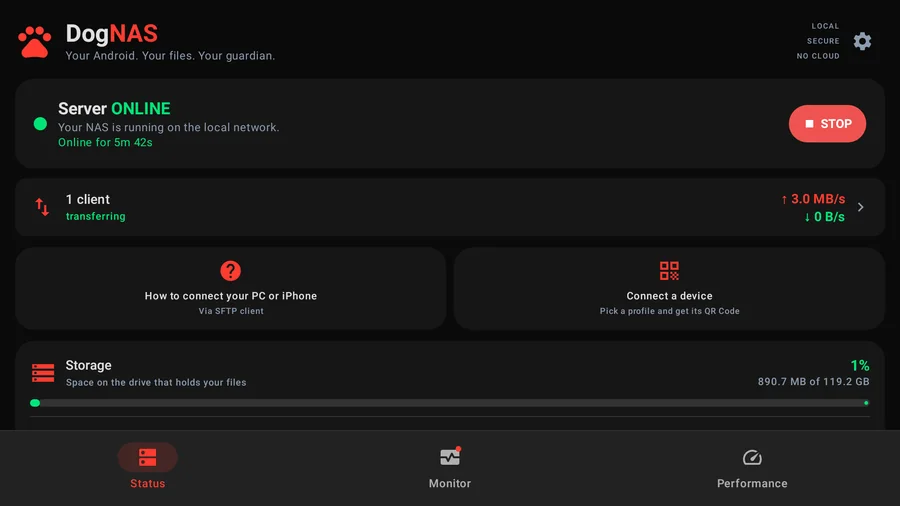
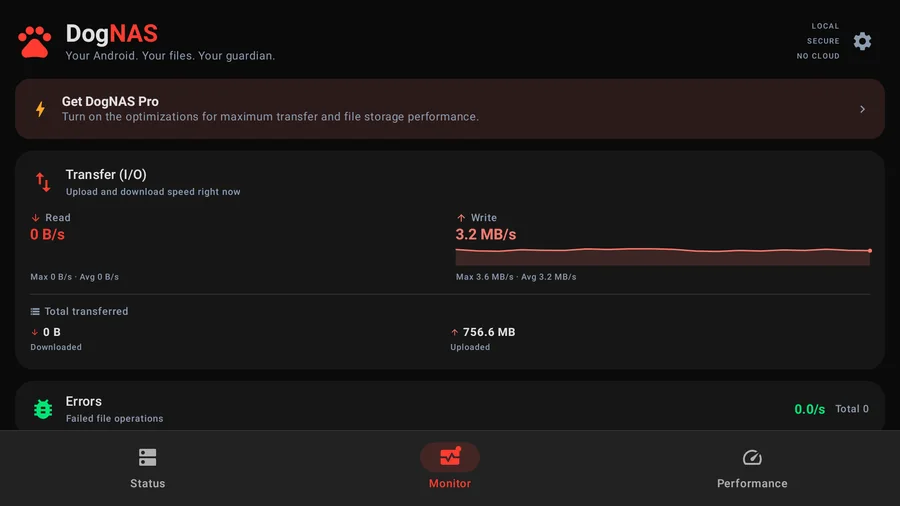
What the server shows on the TV
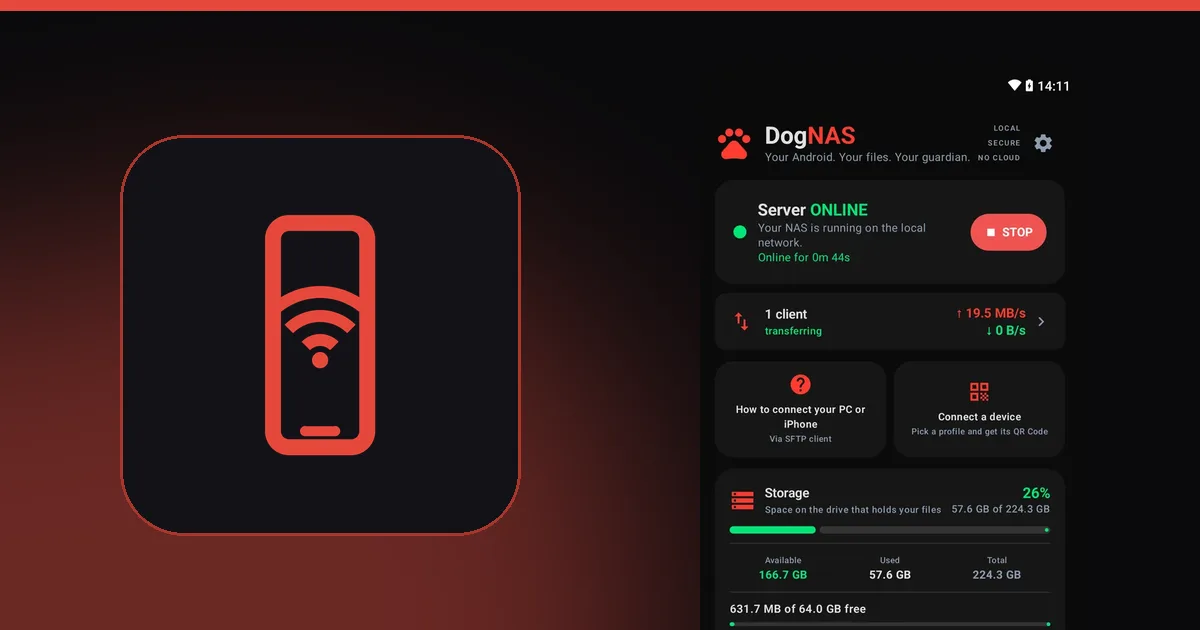
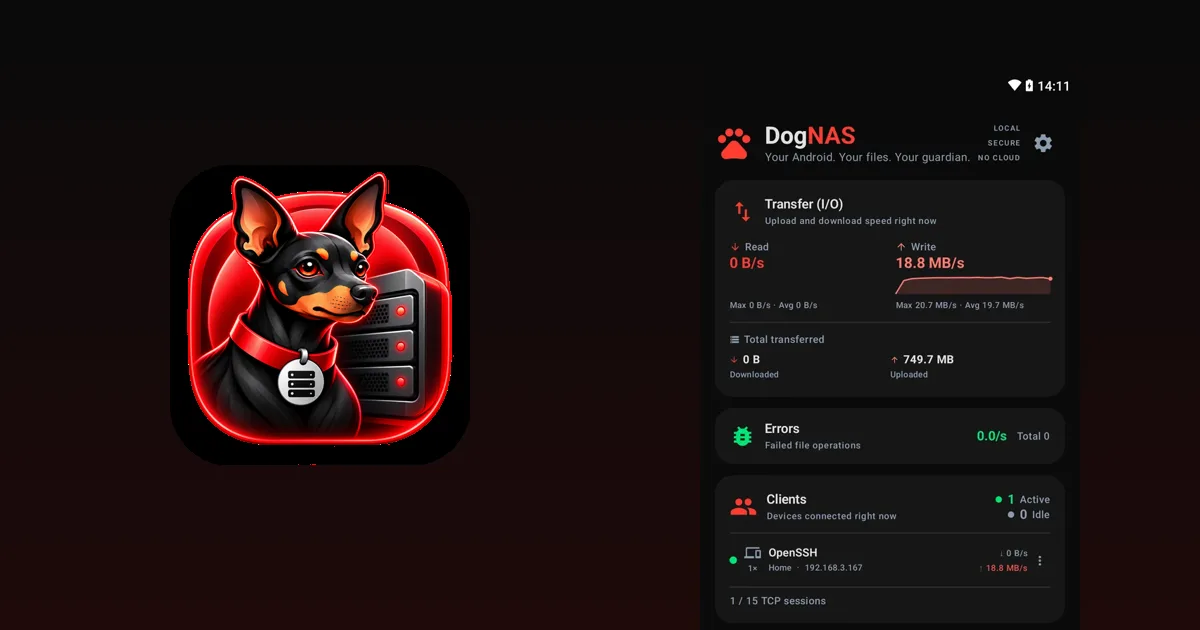
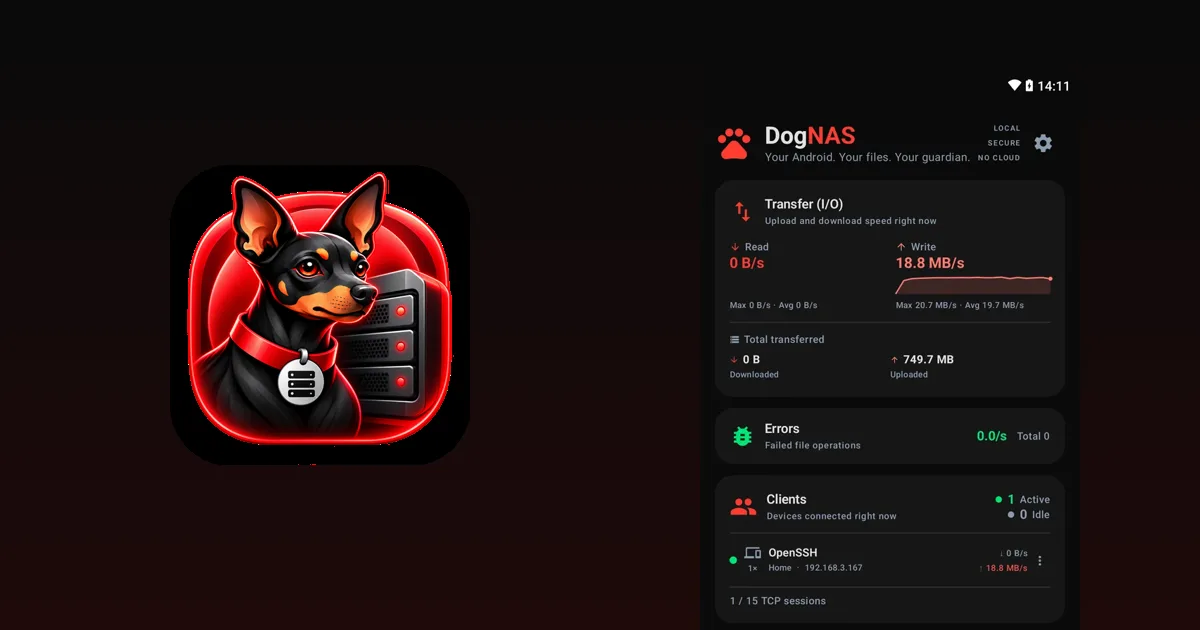
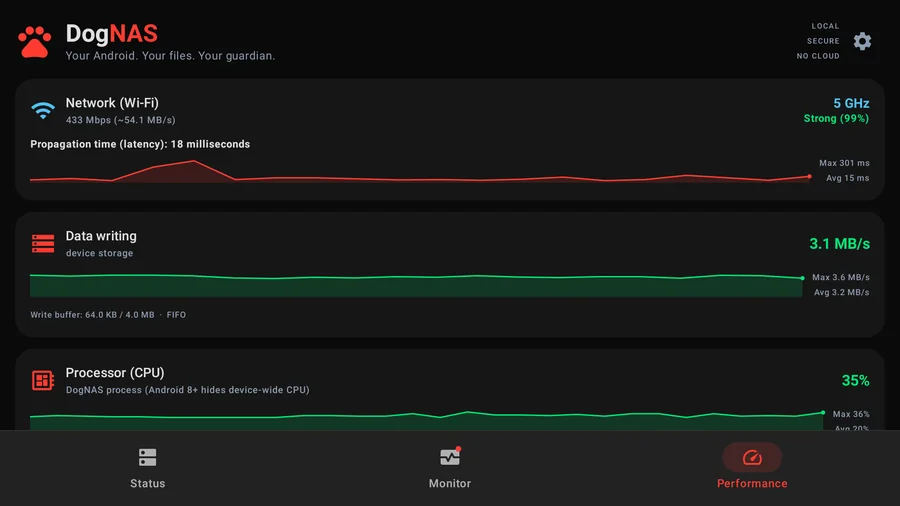
The DogNAS screens are made for the TV: large text, a focus ring for the remote and the same three tabs as on a phone. These are the real screens while a computer was copying files to the box.
What we measured
| Aspect | Result in our test |
|---|---|
| Box | Aquário STV-3000 Plus, Android 11, 2 GB RAM |
| Network | Wi-Fi 5 GHz, link of about 200 to 290 Mbps |
| Computer to the box (SFTP, 200 MB) | about 3.3 MB/s up and 3.1 MB/s down |
| Phone to the box (200 MB) | about 1.2 to 1.4 MB/s up |
| Internal storage vs USB drive | same speed (the disk was not the limit) |
| Files after a copy | checked byte by byte: identical |
For comparison, a modern phone on a good router can be several times faster. The box's processor has to encrypt every transfer, which is why a cheap box tops out at a few MB/s. If you mainly want to keep copies and open documents, that is fine; copying a large video takes minutes, not seconds.
What to know before relying on it
- After a restart the server does not start on its own on the Free plan. Open DogNAS and press Start. The Pro plan can start the server by itself when the box turns on.
- The Pro plan is bought through Google Play. A box without Google Play cannot buy it and stays on the Free plan.
- The remote is enough, but it is not fast. The app shows a visible focus ring and moves with the arrow keys; we tested the arrow keys but not every model of remote. Typing on the on-screen keyboard is slower than on a phone, and the Back button leaves the app, as on any TV app.
- Keep it as a quiet corner of your network. DogNAS is for your home Wi-Fi: nothing leaves your network and there is no cloud.
Does it work on any Android TV box?
It needs Android 7.0 or newer and, in practice, Google Play. We tested one box; other models may differ, especially in standby behaviour and Wi-Fi speed.
Can I use a USB hard disk with it?
Yes. In our test a USB drive plugged into the box was offered in the first-run wizard and worked at the same speed as the internal storage. A drive that needs more power than the box's USB port gives may not spin up, so a powered dock is safer.
Is it fast enough to watch videos from it?
For home use it is acceptable. Speed depends on the specifications of your device, so we recommend checking them (phone, TV box or tablet): the processor, the Wi-Fi and the storage decide how fast files move. In our test we measured a few MB/s; very large or high-quality videos take longer to copy and may need to be copied to the device you watch them on.
Do I need to pay?
Not to start. The Free plan keeps up to 64 GB of files, with the Home profile and two more profiles. Pro is a one-time purchase on Google Play: it removes the 64 GB limit and lets the server start by itself when the box turns on.
Is it worth it
If you already have a TV box that is idle in a drawer, it is a zero-cost way to keep your home files in one place without the cloud. If you are going to buy a device for this, an old phone or tablet with a better processor will usually be faster. Compare it with the other options in reusing an old Android and in an old tablet as home storage.